Offline source reader | preserved content, not new verification
Wavetable Editor | David Vogel
Preserved third-party source, not an ORMAN project instruction. Complete extracted article text is followed by every retained figure and its separately labeled project observation. Original files remain unchanged. For PDFs, use the original page images when extracted glyphs are unclear. Linked external audio/video and external repository trees were not part of the retained snapshot.
Vital Software Synthesizer
Vital User Guide
Wavetable Editor
On this page
Wavetable Editor
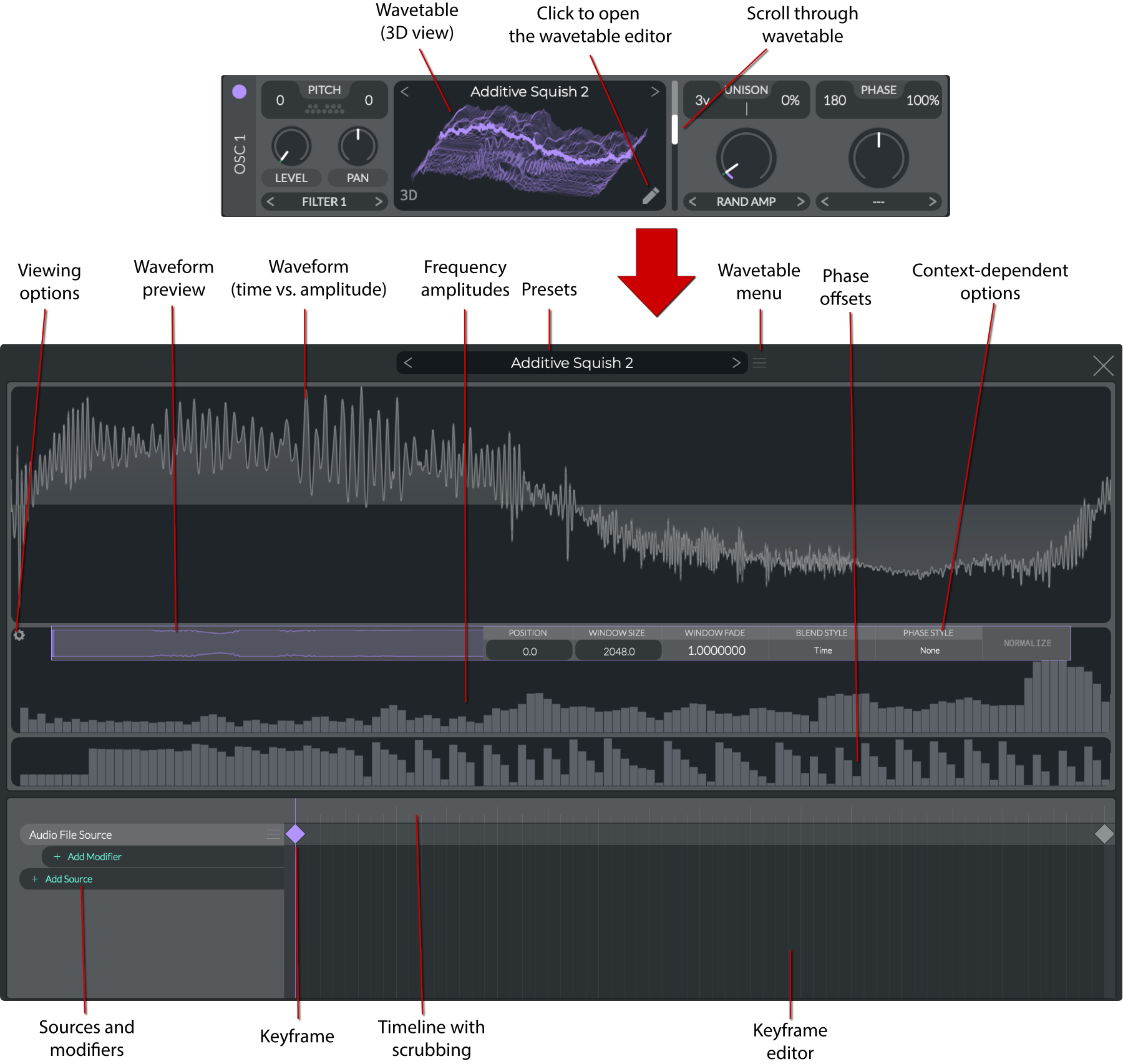
The wavetable editor is one of the key and most unique features of Vital. It allows you to create complex wavetables by graphically manipulating the waveform, harmonics, and phases.
In the editor, you can stack multiple waveforms ("
sources
") and alter them in a variety of ways using "
modifiers
."
Keyframes
are used to create the single waveframes that constitute the wavetable, which are morphed between using the frame scroller.
See the
Oscillators
section for how to use the wavetables you create in the wavetable editor.
danger
There is no undo/redo functionality in the wavetable editor. Be sure to save your work often.
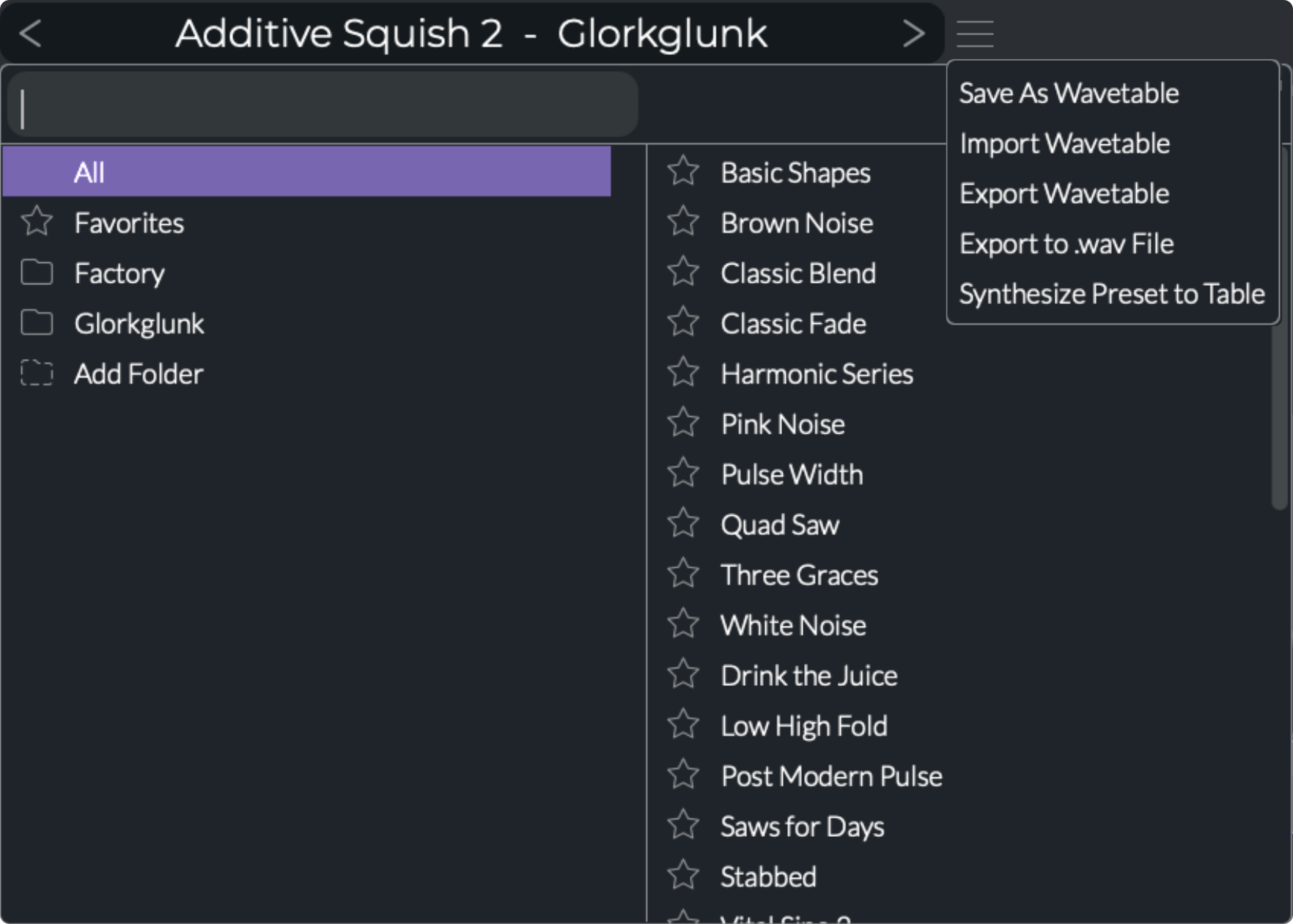
Presets
The Presets menu allows you to load, save, favorite, and search for wavetables. To see where these are saved on your system, right-click on a preset and select
Open File Location
.
The "hamburger menu" gives you options to save, import, and export wavetables. Click on
Synthesize Preset to Table
to convert the current editor settings to an
audio file source
Keyframes
Each keyframe is an editable setting that you can position on the timeline. When using multiple
sources
and
modifiers
, you can have multiple keyframes occupying a single point in time. These will be combined to produce a single waveform.
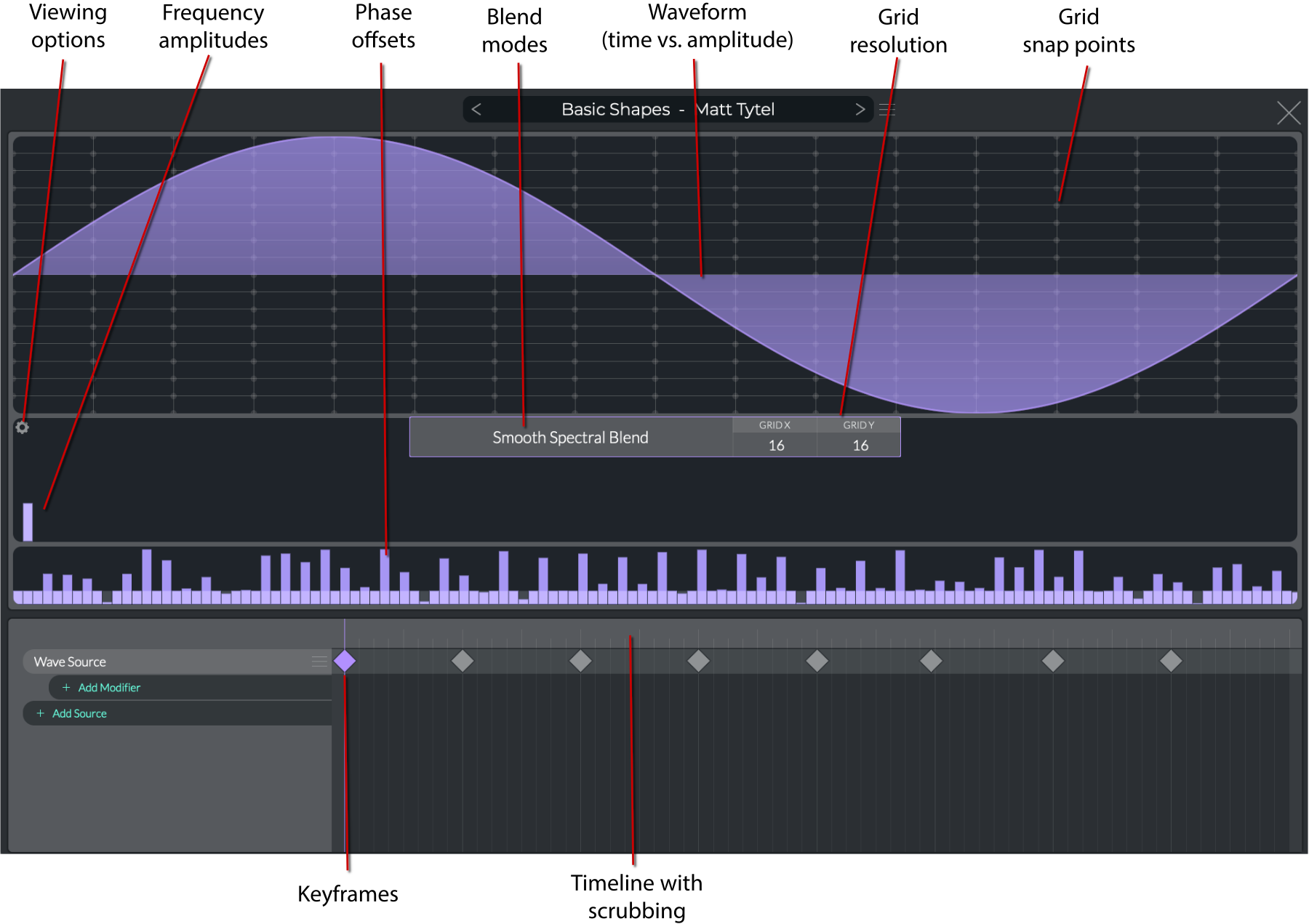
You create a wavetable by creating multiple keyframes distributed horizontally across the timeline. These can be morphed between using the frame slider on the oscillator. You can preview the wavetable by playing and dragging the playhead across the top of the timeline.
Wavetable with 9 keyframes, two of which are stacked. The active one is highlighted in purple.
Editing keyframes:
Add a keyframe
: double-click on the timeline.
Remove a keyframe
: Right-click and choose
Remove Keyframe
Reposition a keyframe
: Click and drag to the desired location.
Sources
There are three types of sources you can use to create a wavetable:
Wave
,
Line
, and
Audio File
.
Wave source
Wave sources allow for the editing of both the time and frequency domains.
Choosing a new wave source
:
Click
Add Source > Wave Source
: This will give you a blank wavetable.
Preset menu
: Choose one of the presets that happens to be a wave source. There is no way to tell from the presets browser which are wave sources and which are not. You will have to load them to see.
Wave source editor
The top portion of the editor is the
Wave Source Editor
. You can draw the waveform by clicking and dragging. The grid provides a way to snap the drawing to certain quantized values. It can be enabled or disabled and adjusted using the
Grid X/Y
controls.
Right-click
on the waveform to access the following options:
Clear
: Clear the waveform.
Flip Vertical
: Flip the waveform vertically (along the x-axis).
Flip Horizontal
: Flip the waveform horizontally (along the y-axis).
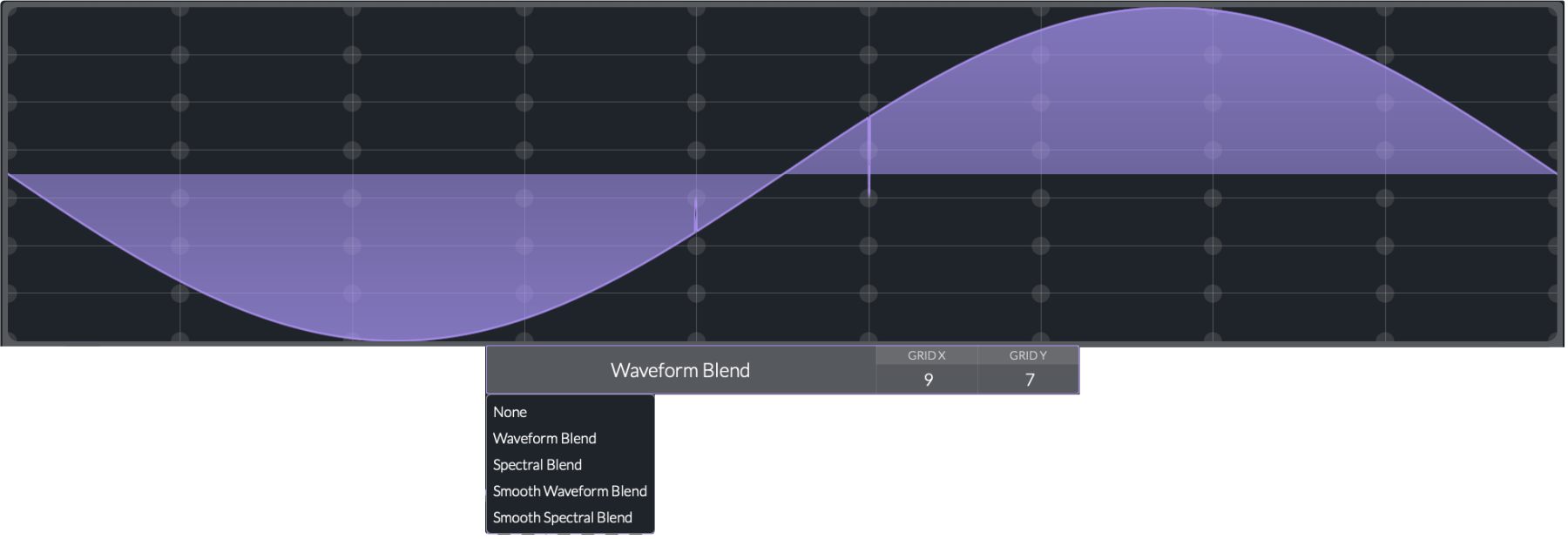
Blend modes
The blend modes determine how the waveforms are interpolated between keyframes.
There are two blend modes, each with a normal or "smooth" version. The smooth versions are higher quality and use cubic interpolation instead of linear, but may use more CPU:
Waveform Blend
: Interpolates amplitudes of waveforms for transitions in the time domain.
Spectral Blend
: Interpolates amplitudes and phases of harmonics for transitions in the frequency domain.
Bar editors
There are two bar editors that control parameters related to the harmonics.
Harmonic Amplitudes
: The top bar editor allows you to adjust the amplitudes of the waveform's harmonics.
Harmonic Phases
: The bottom bar editor allows you to adjust the phase of the waveform's harmonics.
Click the gear icon in the upper left to see the
view options
:
Power Scale
: Adjust the harmonics' amplitudes using a logarithmic scale. We perceive changes in amplitude logarithmically, so this allows for more natural adjustments.
Amplitude Scale
: Adjust the harmonics' amplitudes using a linear scale.
Zoom
: Choose different zoom levels for both the amplitudes and phases. You can also use your mouse wheel or trackpad to zoom in and out.
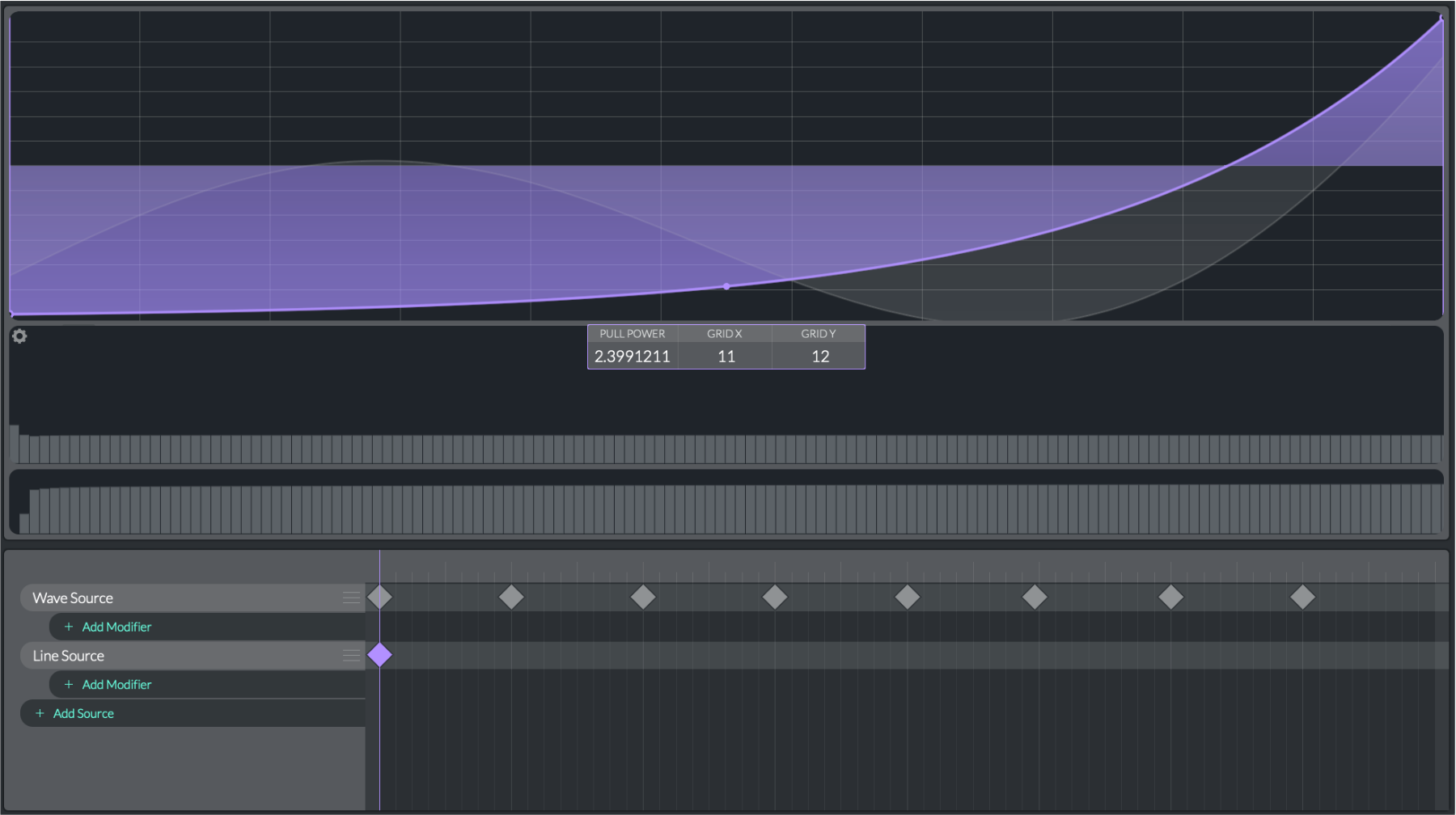
Line source
A line source is similar to a wave source, but only allows editing in the time domain, not the frequency domain.
In the image, there is also a waveform (a sine wave) stacked on top of the line source, so you can see how the line source (purple) will affect the wave source (grey).
You can
add breakpoints
by double-clicking.
Right-click and you will get the following options in the
context menu
:
Remove Point
: Remove the point.
Enter Point Phase
: Manually enter the phase of the point.
Enter Point Value
: Manually enter the amplitude of the point.
Flip Vertical
: Flip the line vertically (along the x-axis).
Flip Horizontal
: Flip the line horizontally (along the y-axis).
The
Pull Power
value determines how much the line source will pull the waveform's harmonics towards it.
To add a new line source
:
Click
Add Source > Line Source
.
Preset menu
: Choose one of the presets that happens to be a line source. There is no way to tell from the presets browser which are line sources and which are not. You will have to load them to see.
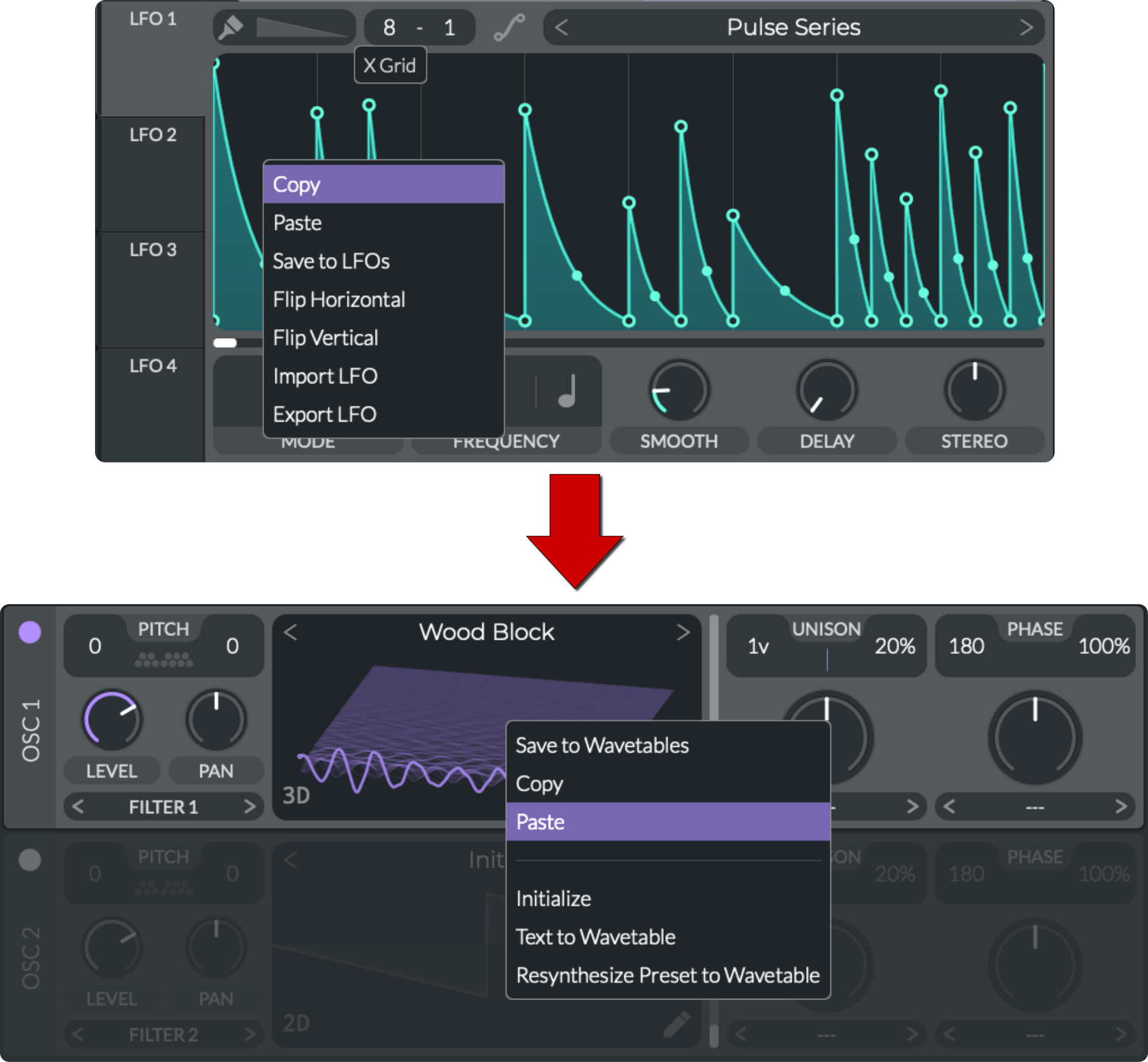
From the Voice tab:
Copy-Paste LFO to Wavetable
: From the Voice tab, copy an LFO and paste it into the oscillator via the context menus. This will be editable as a line source:
Copy-Paste LFO to Wavetable
Audio file source
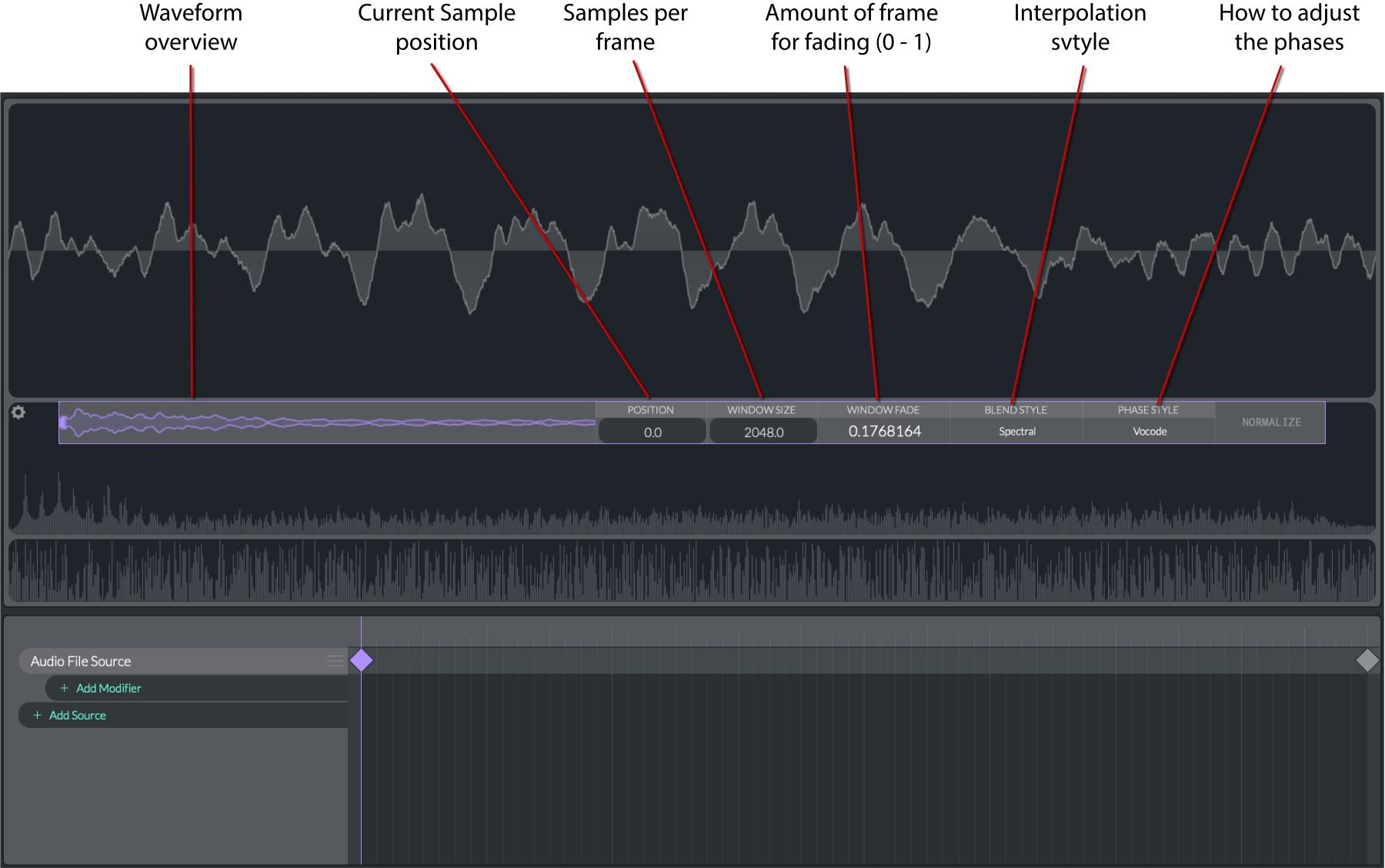
You can also use an audio file (sample) for a source.
To load an audio file
:
From the wavetable editor
:
Preset menu
: Choose one of the presets that happens to be an audio file source. There is no way to tell from the presets browser which are audio file sources and which are not. You will have to load them to see.
Choose
Synthesize Preset to Table
from the wavetable menu (next to the preset selector). This will turn whatever is in the editor into an audio file source.
Drag-and-drop
an audio file from your system onto the waveform overview (the small purple window).
From the Voice tab
:
Text to Wavetable
: Right-click on the waveform of the oscillator and choose
Text to Wavetable
to convert text into an audio file source.
Resynthesize Preset to Wavetable
: Convert all of the settings from the preset into an audio file source which will automatically be pasted into the oscillator.
Drag-and-drop an audio
file from your system onto the wavetable of the oscillator:
When your mouse hovers over the wavetable, you are provided with 3 options:
Wavetable
,
Vocode
, and
Pitch Splice
. The settings (explained below) will be different depending on which you choose:
If you drop on
Wavetable
:
Window Size
: 2048.0 samples
Blend Style
: Spectral
Phase Style
: None
If you drop on
Vocode
:
Vital will attempt to detect the pitch of the audio file and set the Window Size accordingly. The other settings are:
Blend Style
: File Blend
Phase Style
: Vocode
If you drop on
Pitch Splice
, Vital will attempt to detect the pitch of the audio file and set the Window Size accordingly. The other settings are:
Blend Style
: File Blend
Phase Style
: None
note
If Vital did not correctly detect the pitch of the audio file when importing, you can manually enter the correct pitch in the
Window Size
using the letter name and octave (e.g., "C4").
The settings for importing as Wavetable, Vocode, or Pitch Splice are as follows
:
Window Size
: The size (in samples) of the keyframe window. Changing this will also change the pitch. You can also type in a note name and octave to set the window size to that pitch.
Window Fade
: The proportion of the window size that is used for blending or fading between adjacent keyframes. The range is from 0 to 1, where:
0
means no fading is applied, resulting in a hard cut between keyframes.
1
means the entire window size is used for fading, resulting in a smooth transition between segments.
Blend Style
: The style of blending or fading to use between keyframes.
Spectral
: Blend the amplitudes and phases of the harmonics.
Time
: Blend the amplitudes of the waveform.
File
: Blends one segment of the wave with another using a windowed overlap technique. It applies a fade effect to smoothly blend the overlapping segments, ensuring smooth transitions and avoiding discontinuities.
Phase Style
: The style of phase assignment to use for the frequency components.
Clear
: Use a non-random pattern for the phases. Specifically, alternating phases of
−
π
2
-\frac{\pi}{2}
−
2
π
and
π
2
\frac{\pi}{2}
2
π
are assigned to the frequency components. This can help in creating a consistent phase relationship across the waveform.
Vocode
: Assign random phases to the frequency components. This can create a vocoder-like effect. The random phases are generated using a random number generator seeded with a specific value to ensure reproducibility.
Modifiers
Each
source
can have one or more modifiers applied to it. These modifiers can be used to manipulate the waveform in various ways.
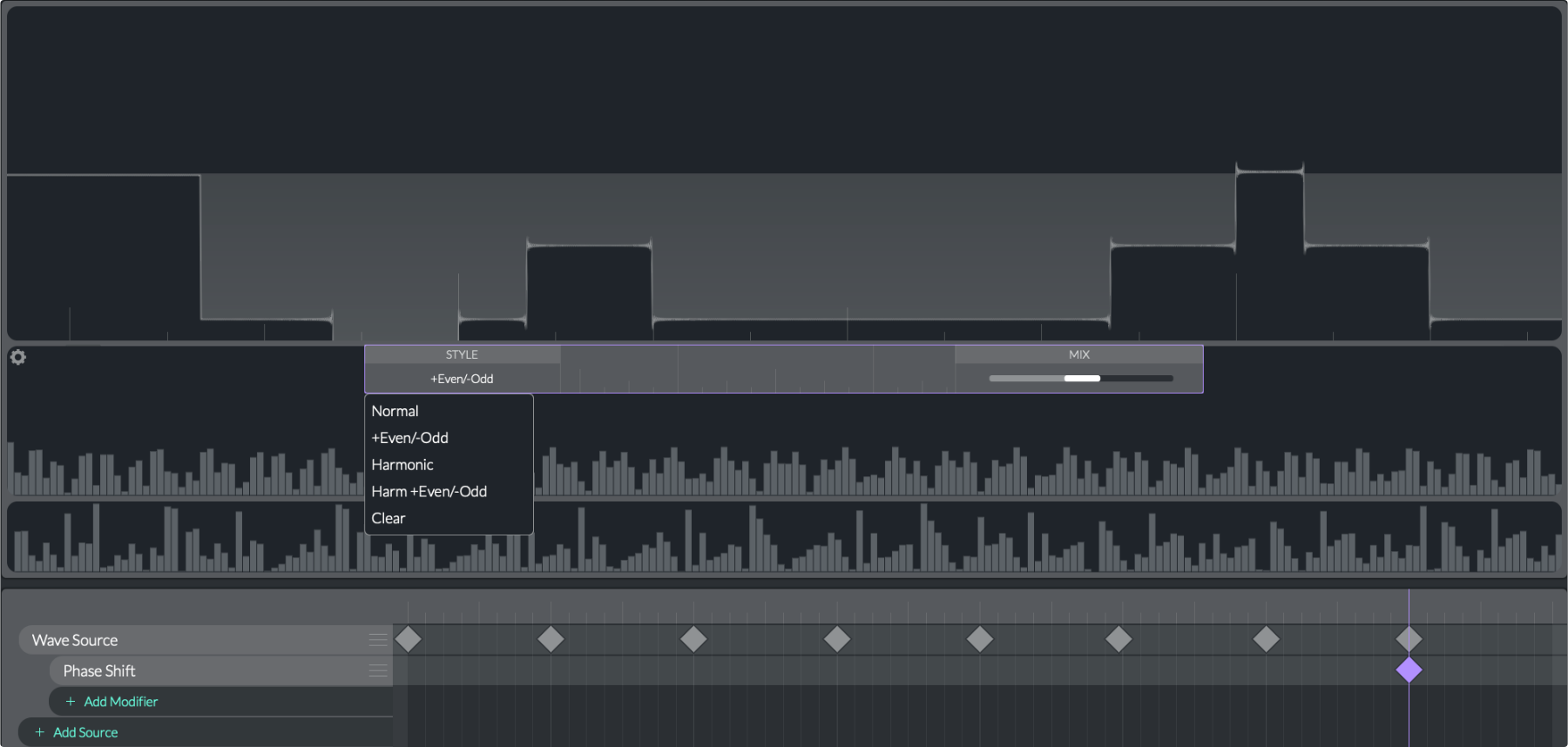
Phase shift
The Phase Shift modifier manipulates the phase relationships among a wavetable's harmonic components to achieve various timbral effects. By selecting a
Phase Style
and controlling the
Mix
, it can produce harmonic shifts, alternate even/odd phase patterns, or clear all phase differences. Interpolating between
keyframes
allows for dynamic phase evolutions across the wavetable.
Phase Styles
:
Normal
: Applies a harmonic phase shift cumulatively up the harmonic series. Each harmonic is shifted by a phase offset that increases progressively.
+Even/-Odd
: Applies different phase treatments to even and odd harmonics. Even harmonics receive a positive phase shift, while odd harmonics receive a negative phase shift.
Harmonic
: Uniformly shifts the phase for all harmonics directly by a specified phase offset. This results in a consistent phase shift across all harmonics.
Harm +Even/-Odd
: Combines harmonic-based phase shifts with separate handling of even and odd harmonics. Even harmonics are shifted by one phase offset, while odd harmonics are shifted by another.
Clear
: Clears all phase information, making all harmonics in phase. This results in a waveform where all frequency components have the same phase, effectively removing any phase differences.
Use the
Mix
slider to blend between the original and modified phases.
Wave window
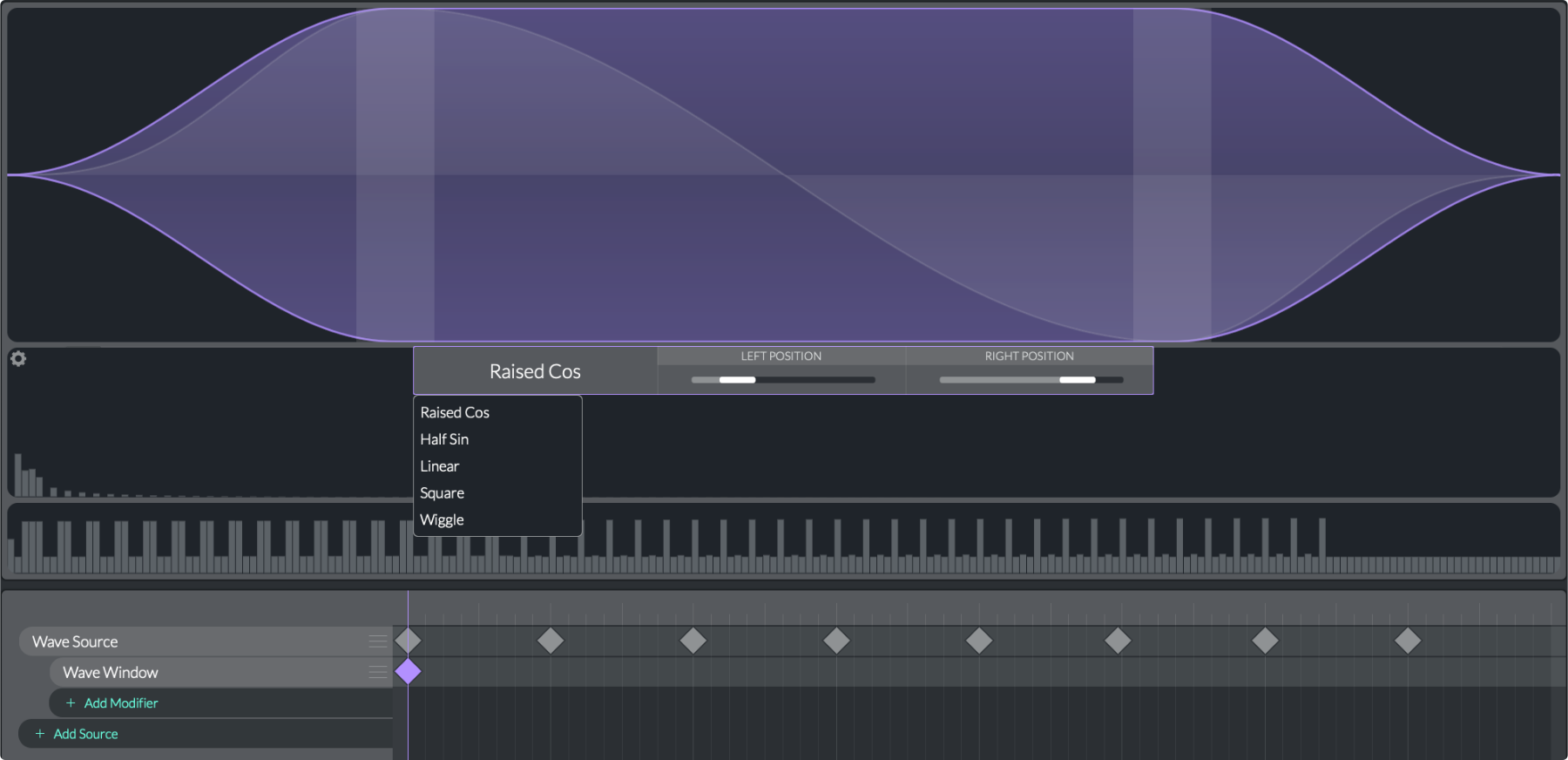
Wave Window modifiers apply a chosen windowing function to the beginning and end of a waveform, tapering its amplitude based on the values of the Left Position and Right Position. Different window shapes (Raised Cos, Half Sin, Linear, Square, or Wiggle) produce various slopes and transitions. By interpolating between keyframes, users can animate the window size and shape over the wavetable, influencing how the waveform's amplitude envelope evolves dynamically.
The different window shapes apply various tapering functions to the beginning and end of a waveform:
Raised Cos
: Applies a cosine-based window function, creating a smooth rise and fall in amplitude.
Half Sin
: Uses a half-sine wave to taper the amplitude, resulting in a smooth, sinusoidal transition.
Linear
: Applies a linear ramp function, creating a straight-line transition in amplitude.
Square
: Creates a sudden step change in amplitude, effectively turning the waveform on or off abruptly.
Wiggle
: Applies a more complex, wiggly shape to the amplitude transition.
Left Position
: Determines the position of the window function's left edge, controlling where the tapering begins.
Right Position
: Determines the position of the window function's right edge, controlling where the tapering ends.
Frequency filter
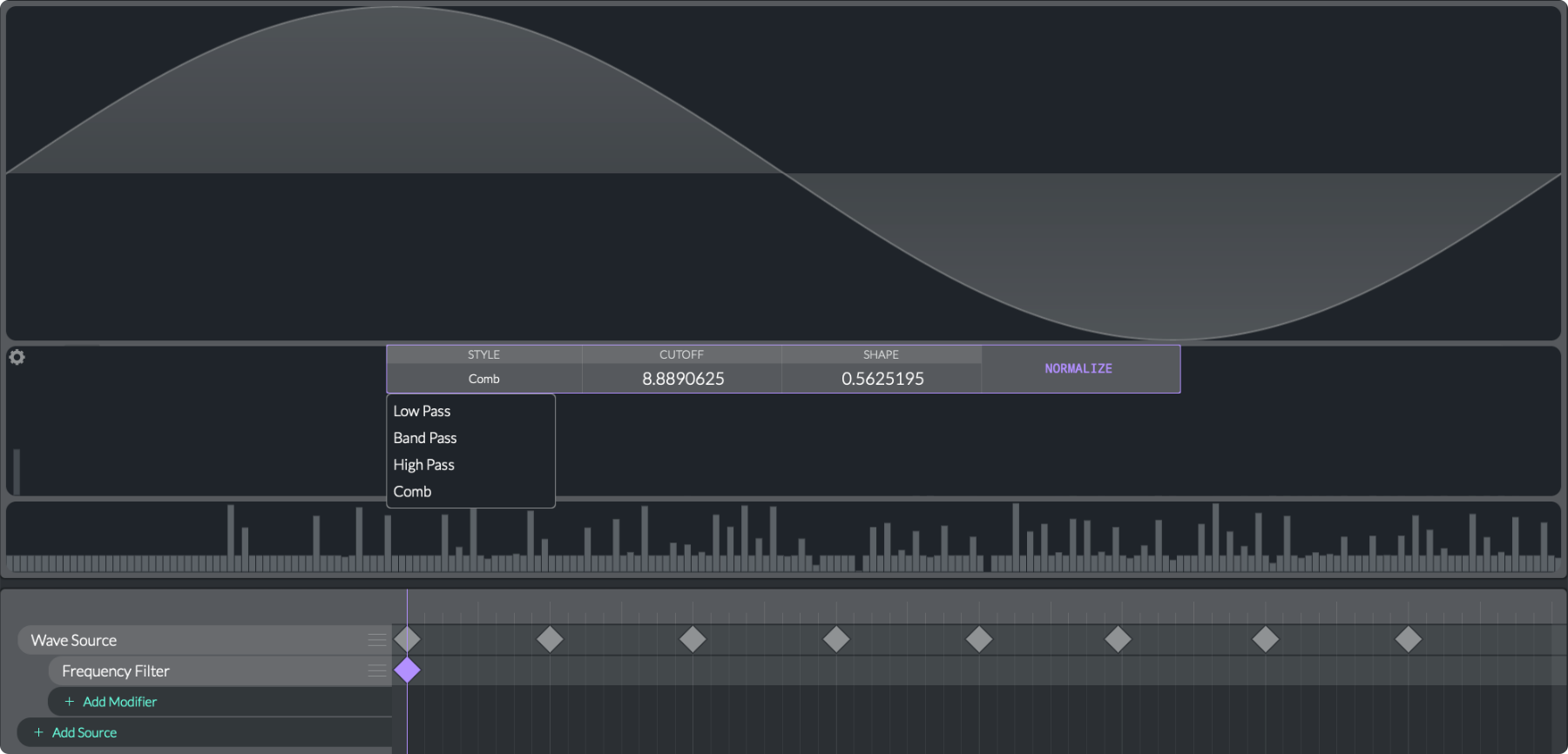
The Frequency Filter modifier changes the harmonic content of a wave by applying frequency-domain filtering:
Low Pass
: A low-pass filter allows frequencies below a certain cutoff point to pass through while attenuating higher frequencies.
Band Pass
: A band-pass filter allows a range of frequencies centered around a cutoff point to pass through while attenuating frequencies outside this range.
High Pass
: A high-pass filter allows frequencies above a certain cutoff point to pass through while attenuating lower frequencies.
Comb
: A comb filter creates a series of notches or peaks in the frequency spectrum, producing a comb-like pattern of frequency attenuation and reinforcement.
Cutoff
(
0 to 10
): The point at which the filter begins to take effect, determining the point at which frequencies are attenuated or allowed to pass through.
Shape
(
0 to 1
): Controls the slope or steepness of the filter's attenuation curve. It determines how sharply the frequencies are attenuated around the cutoff frequency.
Normalize
: When enabled, the filter's output is normalized to prevent clipping and ensure consistent amplitude levels across the wavetable.
Slew limiter
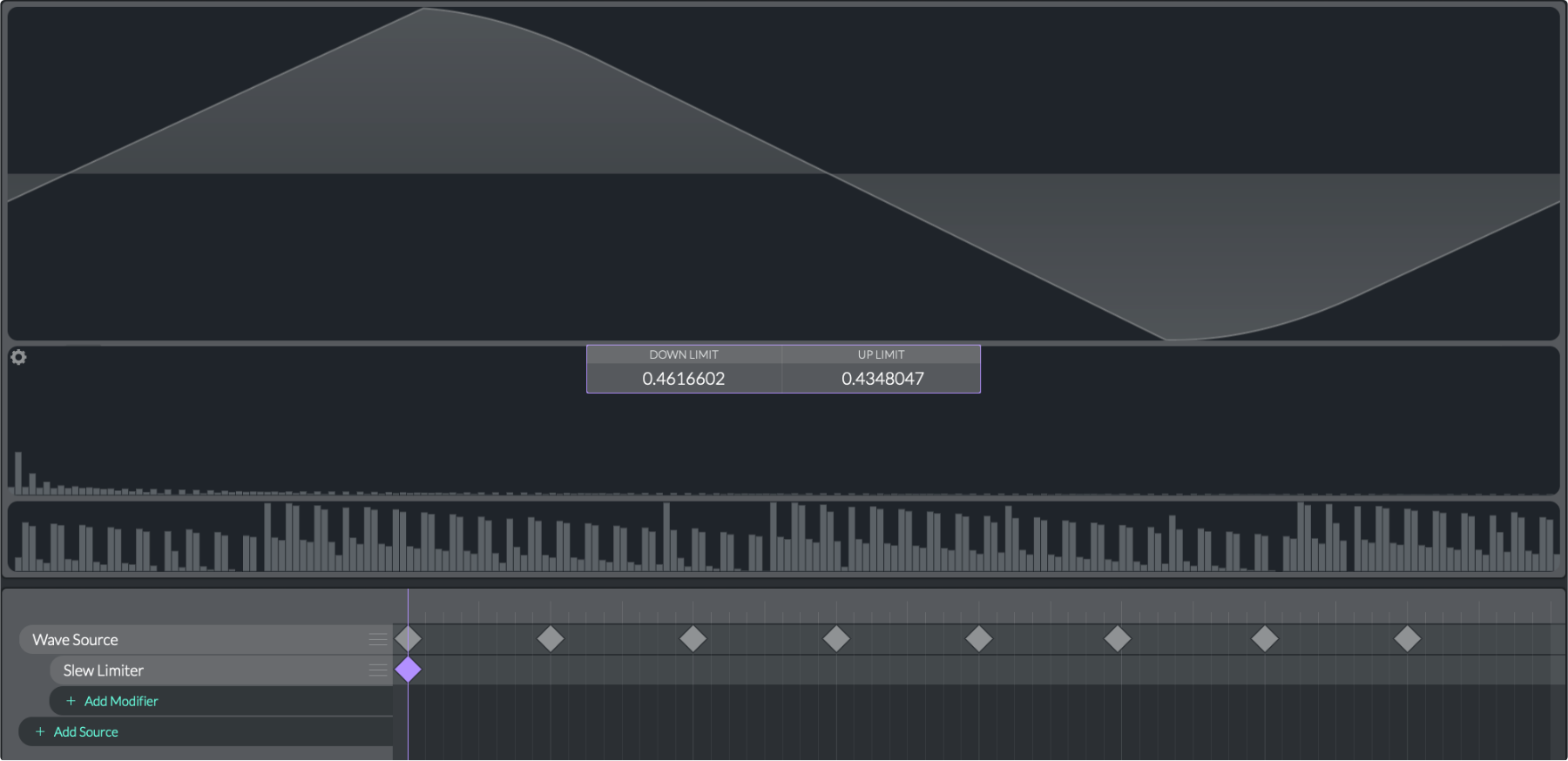
The Slew Limiter modifier applies
slew-rate limiting
to the wavetable's time-domain signal, controlling how quickly the waveform can rise or fall per sample. By adjusting the Down and Up Limits, you can achieve smoother transitions and reduce harsh dynamics in the resulting sound:
Down Limit
(
0 to 1
): The maximum rate at which the waveform can decrease in amplitude per sample. A value of 0 means no downward slew limiting, while a value of 1 imposes the maximum limit.
Up Limit
(
0 to 1
): The maximum rate at which the waveform can increase in amplitude per sample. A value of 0 means no upward slew limiting, while a value of 1 imposes the maximum limit.
Wave folder
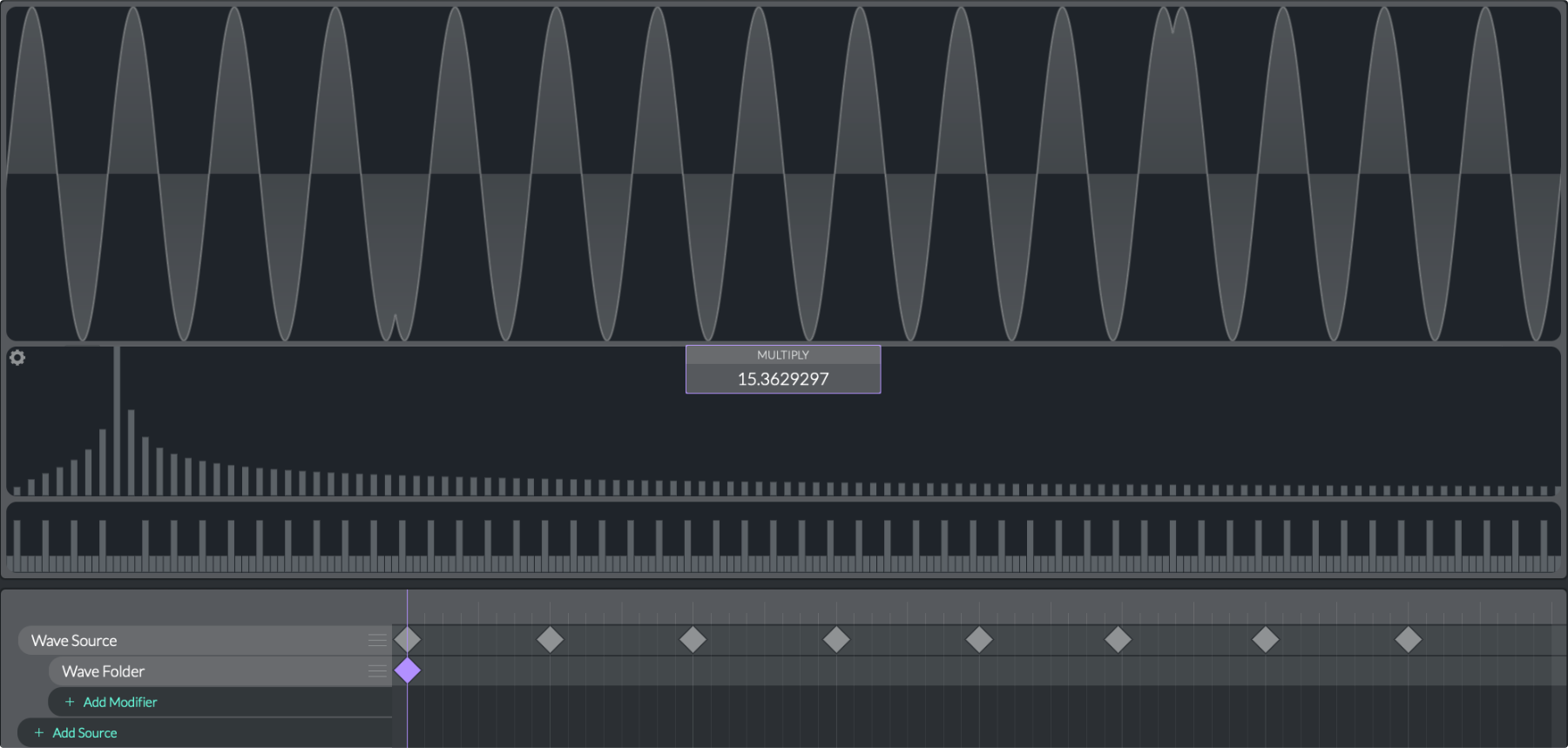
The Wave Folder modifier applies a nonlinear wave-folding effect to a wavetable's time-domain waveform. By scaling and folding the waveform through sine and arcsine functions, it adds harmonic complexity and can create interesting timbral variations. Adjusting the fold Multiply parameter in keyframes and interpolating between them allows dynamic control over the amount of wave folding across the wavetable:
Multiply
(
1 to 32
): The amount of wave folding applied to the waveform. Higher values result in more pronounced folding and increased harmonic complexity.
Wave warp
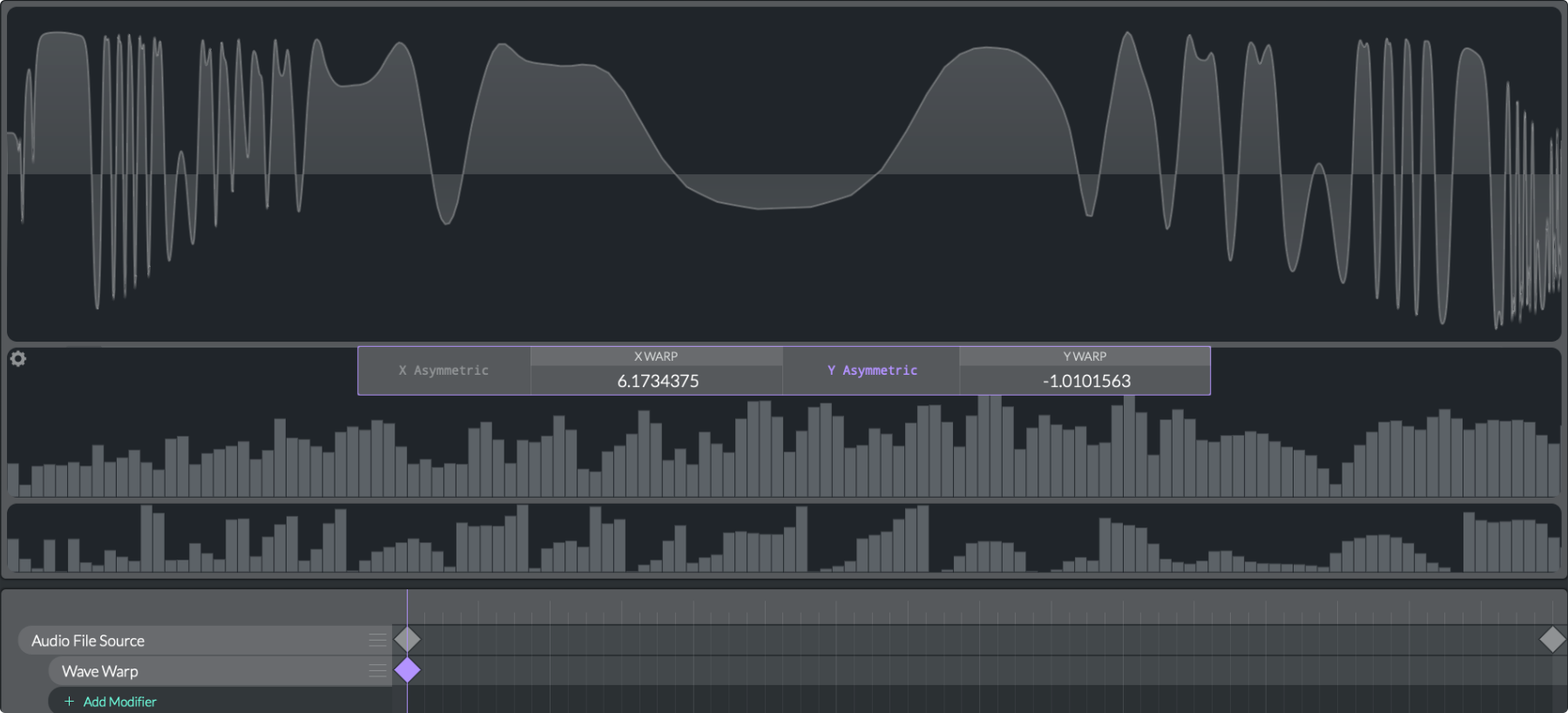
The Wave Warp modifier allows nonlinear reshaping of a waveform by warping it horizontally (time-axis) and vertically (amplitude-axis). You can set warp powers (X Warp and Y Warp) and choose symmetric or asymmetric transformations, creating a wide range of waveform distortions. Interpolation between keyframes and these nonlinear transformations can produce evolving, dynamic waves that move beyond simple linear scaling.
X Asymmetric
(
on/off
): Controls whether the horizontal warping is applied asymmetrically.
When
on
, the transformation differs for values on different sides of the waveform.
When
off
, the transformation is symmetric around the center point.
X Warp
(
-20 to 20
): Controls the strength of the horizontal (time-axis) warping. Positive values stretch the waveform horizontally, while negative values compress it.
Y Asymmetric
(
on/off
): Controls whether the vertical warping is applied asymmetrically.
When
on
, the transformation differs for positive and negative amplitude values.
When
off
, the transformation is symmetric around the zero amplitude.
Y Warp
(
-20 to 20
): Controls the strength of the vertical (amplitude-axis) warping. Positive values stretch the waveform vertically, while negative values compress it.
V16 | Wavetable Editor
Wavetable-Editor.html | documentation and visible configuration; not a new native test
Wavetable Editor
Retained observation
The editor overview aligns waveform, harmonic magnitudes, phase offsets, source/modifier lanes and keyframe positions. Context-dependent parameters belong to the selected resource operation. A keyframe axis describes available resource states; a running oscillator still needs a frame-position trajectory.
Source SHA-256: 35dbe816e98d221fe7700c86b8502901cd743c51c1d665141d285b517a57d32f Image SHA-256: c14ff8d9958ceea29a59a13f4685b37ce9613b8701bbad235fc514d214947b35 Original URL: https://davidmvogel.com/img/vital-images/wavetable-editor.svg
V17 | Wavetable Editor Presets
Wavetable-Editor.html | documentation and visible configuration; not a new native test
Presets
Retained observation
The resource browser has Save As Wavetable, Import/Export Wavetable, WAV export and Synthesize Preset to Table. These retain different artifacts. Preserve the editable source recipe as well as baked output when useful; table resynthesis does not by itself retain the original patch's performance-dependent graph.
Source SHA-256: 35dbe816e98d221fe7700c86b8502901cd743c51c1d665141d285b517a57d32f Image SHA-256: 2014a02f6dbe115df51e2a616571d0224d9cb771742f0a1056b454d2ba89c4d4 Original URL: https://davidmvogel.com/img/vital-images/wavetable-editor-presets.svg
V18 | Keyframes
Wavetable-Editor.html | documentation and visible configuration; not a new native test
Keyframes
Retained observation
Wave Source and Line Source have separate lanes and differently populated keyframes. A table can combine authored sources with independent resource evolution. These are not extra runtime oscillators, and their keyframes need not all change at the same positions.
Source SHA-256: 35dbe816e98d221fe7700c86b8502901cd743c51c1d665141d285b517a57d32f Image SHA-256: e5e3d9b5f4594541508b6afeedf5b80950f662c80a93bce680840dfaf9d72107 Original URL: https://davidmvogel.com/img/vital-images/keyframes.svg
V19 | Wave Sources
Wavetable-Editor.html | documentation and visible configuration; not a new native test
Wave source
Retained observation
The waveform editor exposes amplitude and phase bars separately, grid resolution, snap points and Smooth Spectral Blend. A sinusoidal waveform can coexist with phase-bar values for bins whose amplitudes are absent; phase bars alone do not prove audible harmonics. Retain amplitude, phase and interpolation choices.
Source SHA-256: 35dbe816e98d221fe7700c86b8502901cd743c51c1d665141d285b517a57d32f Image SHA-256: 1fc7699fd1a94cc99ac3c08503f786050ac4ce387fe973ee160f65feecc693ef Original URL: https://davidmvogel.com/img/vital-images/wave-sources.svg
V20 | Wave Source Editor
Wavetable-Editor.html | documentation and visible configuration; not a new native test
Wave source editor
Retained observation
The open blend menu offers None, Waveform Blend, Spectral Blend and smooth forms of each. Interpolation is an explicit construction decision, not an assumed property of the input cycles. Choose it alongside phase relations and the desired transition; a still waveform does not establish how intermediate frames sound.
Source SHA-256: 35dbe816e98d221fe7700c86b8502901cd743c51c1d665141d285b517a57d32f Image SHA-256: 0b637823668bd79f62ec9971ae9a1072e13c36e8652a334d4b09a314d8cce1f7 Original URL: https://davidmvogel.com/img/vital-images/wave-source-editor.svg
V21 | Bar Editors
Wavetable-Editor.html | documentation and visible configuration; not a new native test
Bar editors
Retained observation
The two bar editors display independently patterned harmonic magnitudes and phase offsets. Additive content and phase structure can therefore be authored separately. Preserve both when extracting or editing a resource instead of assuming a spectral magnitude match uniquely determines the waveform.
Source SHA-256: 35dbe816e98d221fe7700c86b8502901cd743c51c1d665141d285b517a57d32f Image SHA-256: 8e3e9a3965a8bafe70bda493d3eed2dccd68626d6a08f4c8e3adf045b6d1b58d Original URL: https://davidmvogel.com/img/vital-images/bar-editors.svg
V22 | Line Source Editor
Wavetable-Editor.html | documentation and visible configuration; not a new native test
Line source
Retained observation
The selected Line Source uses a drawn curved contour, its own grid and Pull Power, alongside a separate Wave Source lane. This is a compact parametric ingredient option. Pull Power is retained with the existing source-backed interpretation as a bias in interpolation between line-source keyframes, not frequency tuning.
Source SHA-256: 35dbe816e98d221fe7700c86b8502901cd743c51c1d665141d285b517a57d32f Image SHA-256: 989750646b4c47ab06bb75dba01975965316bbab9b89552cd6b156b1989f2c7a Original URL: https://davidmvogel.com/img/vital-images/line-source-editor.svg
V23 | Copy-Paste LFO to Wavetable
Wavetable-Editor.html | documentation and visible configuration; not a new native test
Line source
Retained observation
The explicit Copy LFO -> Paste oscillator example transfers a drawn Pulse Series shape into a wavetable. Curve geometry is reusable across editors, but a pasted cycle is an audio resource, not the original LFO's tempo/mode/timing assignment. This enables authored ingredients without recording a full phrase.
Source SHA-256: 35dbe816e98d221fe7700c86b8502901cd743c51c1d665141d285b517a57d32f Image SHA-256: 037346a29f4e6341e74f93e5ac5295ae75031d96b9090995acbaa6614054eb29 Original URL: https://davidmvogel.com/img/vital-images/copy-paste-lfo-to-wavetable.svg
V24 | Audio File Source Editor
Wavetable-Editor.html | documentation and visible configuration; not a new native test
Audio file source
Retained observation
Audio File Source exposes sample position, samples per frame, window fade, blend style, phase style and Normalize. Each is a separate extraction choice. Window fade affects within-resource treatment, not the played note's ADSR. Preserve these settings so extraction errors can be distinguished from execution errors.
Source SHA-256: 35dbe816e98d221fe7700c86b8502901cd743c51c1d665141d285b517a57d32f Image SHA-256: 1545658640e44cb3a4f5f6cdd8c518a103ccbfff98a69d392c97fe13c86c6850 Original URL: https://davidmvogel.com/img/vital-images/wave-editor-audio-file-source.svg
V25 | Drop Sample on Oscillator
Wavetable-Editor.html | documentation and visible configuration; not a new native test
Audio file source
Retained observation
Dropping the same audio on an oscillator offers Wavetable, Vocode and Pitch Splice zones. They are distinct import operations, not quality grades. The next three figures retain their actual resulting settings for one example audio.
Source SHA-256: 35dbe816e98d221fe7700c86b8502901cd743c51c1d665141d285b517a57d32f Image SHA-256: b9bb67ace07f351fbba956b1b1782dac2cf5b888b56e09f2a077c00661c6389c Original URL: https://davidmvogel.com/img/vital-images/drop-sample-on-oscillator.svg
V26 | Drop Sample on Oscillator
Wavetable-Editor.html | documentation and visible configuration; not a new native test
Audio file source
Retained observation
Wavetable import shows window 2048, fade 1, Spectral blend and Phase None. The fixed window is a concrete example of cycle slicing. It need not match the period of arbitrary reference audio; do not treat it as pitch-aware extraction.
Source SHA-256: 35dbe816e98d221fe7700c86b8502901cd743c51c1d665141d285b517a57d32f Image SHA-256: eee7592afdd80436d290a03e493f555ad17914ff0992abc48ea3e8e9bd7ae82a Original URL: https://davidmvogel.com/img/vital-images/audio-source-drop-on-wavetable-settings.png
V27 | Drop Sample on Oscillator
Wavetable-Editor.html | documentation and visible configuration; not a new native test
Audio file source
Retained observation
Vocode import of the example shows window 336.2, fade 1, File Blend and Vocode phase. The changed window and phase treatment are explicit differences from V26. The exact 336.2 value belongs to this example, not all pitched imports.
Source SHA-256: 35dbe816e98d221fe7700c86b8502901cd743c51c1d665141d285b517a57d32f Image SHA-256: 618314ce878f77f134ebded621f8756b052dce3cd724b6cc957bd631d83baacb Original URL: https://davidmvogel.com/img/vital-images/audio-source-drop-on-vocode-settings.png
V28 | Drop Sample on Oscillator
Wavetable-Editor.html | documentation and visible configuration; not a new native test
Audio file source
Retained observation
Pitch Splice shows the same example window 336.2 and File Blend, but Phase None. Comparing V27 and V28 isolates a phase-handling distinction without inventing an audible winner. Retain the import choice in provenance; downstream complexity cannot reliably compensate for every mistaken extraction choice.
Source SHA-256: 35dbe816e98d221fe7700c86b8502901cd743c51c1d665141d285b517a57d32f Image SHA-256: 78a6c324a67a2e717ccf36992bbcd863855aa3f5c1aa75306964629b9e82ab8f Original URL: https://davidmvogel.com/img/vital-images/audio-source-drop-on-pitchslice-settings.png
V29 | Phase Shift Modifier
Wavetable-Editor.html | documentation and visible configuration; not a new native test
Phase shift
Retained observation
Phase Shift is a modifier lane with its own keyframe and Mix. The menu separates Normal, +/-Even/Odd, Harmonic, Harm+Even/Odd and Clear. Phase treatment can evolve across the resource independently of the source keyframes. Retain the existing complex-spectrum mixing qualification: Mix need not preserve magnitudes.
Source SHA-256: 35dbe816e98d221fe7700c86b8502901cd743c51c1d665141d285b517a57d32f Image SHA-256: d560a9094322c33580a67adffdee77c59a3992f9d473af36c3b4aeffed1ebeeb Original URL: https://davidmvogel.com/img/vital-images/phase-shift-modifier.svg
V30 | Wave Window Modifier
Wavetable-Editor.html | documentation and visible configuration; not a new native test
Wave window
Retained observation
Wave Window has left/right positions and Raised Cos, Half Sin, Linear, Square and Wiggle styles. The shaded window is within the displayed cycle. This is an ingredient-shaping operation, not a note-level fade or a substitute for an ADSR; edge shape changes the resulting harmonic content.
Source SHA-256: 35dbe816e98d221fe7700c86b8502901cd743c51c1d665141d285b517a57d32f Image SHA-256: 051d86027a4f7eeea938cf2f550746900597ae07e51b52f968d0c3ff3f204459 Original URL: https://davidmvogel.com/img/vital-images/wave-window-modifier.svg
V31 | Frequency Filter Modifier
Wavetable-Editor.html | documentation and visible configuration; not a new native test
Frequency filter
Retained observation
Frequency Filter offers LP/BP/HP/Comb, cutoff, shape and Normalize on a modifier lane. A filter can be baked into table frames or remain a runtime control, with different musical consequences. This editor cutoff is harmonic-index based in the existing implementation notes; do not substitute it for absolute-Hz cutoff.
Source SHA-256: 35dbe816e98d221fe7700c86b8502901cd743c51c1d665141d285b517a57d32f Image SHA-256: 4c6321141669f1a32345f1cee4bb7adf37483399168595b904a1958695531759 Original URL: https://davidmvogel.com/img/vital-images/frequency-filter-modifier.svg
V32 | Slew Limiter Modifier
Wavetable-Editor.html | documentation and visible configuration; not a new native test
Slew limiter
Retained observation
Slew Limiter exposes separate Down Limit and Up Limit and visibly changes slope geometry. Asymmetric waveform transition limiting is an available source-shaping operation. It is not the LFO smoothing control or compressor attack/release; all three operate on different signals and scales.
Source SHA-256: 35dbe816e98d221fe7700c86b8502901cd743c51c1d665141d285b517a57d32f Image SHA-256: e6a703cf095152d211031ceb8d6f38d3e6363e8a879a5508cfa07eb32e5ef0e3 Original URL: https://davidmvogel.com/img/vital-images/slew-limiter-modifier.svg
V33 | Wave Folder Modifier
Wavetable-Editor.html | documentation and visible configuration; not a new native test
Wave folder
Retained observation
Wave Folder shows a Multiply parameter, repeated folds and its own modifier keyframe. Harmonics can be constructed from a simpler input by a compact nonlinear operation. Baked folding and level-driven runtime distortion are distinct choices; the latter can respond to the played amplitude envelope.
Source SHA-256: 35dbe816e98d221fe7700c86b8502901cd743c51c1d665141d285b517a57d32f Image SHA-256: ba63d3e5a00b9398f5a96bc1b5b082031fc401ce761be1fb9a4b1a2acbd8bed4 Original URL: https://davidmvogel.com/img/vital-images/wave-folder-modifier.svg
V34 | Wave Warp Modifier
Wavetable-Editor.html | documentation and visible configuration; not a new native test
Wave warp
Retained observation
Wave Warp exposes X/Y Warp and separate asymmetric switches on an Audio File Source modifier. Horizontal coordinate distortion and vertical amplitude distortion need not be conflated. Retain this authoring recipe alongside the resulting waveform when resource-level warping explains a useful ingredient.
Source SHA-256: 35dbe816e98d221fe7700c86b8502901cd743c51c1d665141d285b517a57d32f Image SHA-256: 1694899a27917621f85634325938b2b7291b50a663c047b75fe0b4423ae12c7f Original URL: https://davidmvogel.com/img/vital-images/wave-warp-modifier.svg